Smart Assistant User Guide
Getting Started, Tips, and Troubleshooting for Zoho CRM Users
1. Getting Started
1.1 First-Time Setup
If your Zoho administrator has installed Smart Assistant, getting started takes 30 seconds:
- Open a contact — Navigate to any contact record in Zoho CRM
- Open Smart Assistant — It's already embedded: look for the Smart Assistant widget in the Related Lists section, or click the Smart Assistant button on the view page to open it in an in-CRM popup (no new tab).
- Authorize once (admin) — An administrator creates the connection once under ⚙️ Setup → Developer Hub → Connections → Pick Your Service → Smart Assistant → Create and Connect. Each user then clicks Connect on that connection and Accept on Zoho's consent screen — one time only.
- Done — Smart Assistant loads CRM details, Books invoices, Desk tickets, and an AI summary instantly, right inside the contact page.
💡 Tip: Authorization happens once, from Zoho's own connection screen — never from the contact page, and no Org/User IDs are ever asked for. After that, Smart Assistant works automatically for all contacts.
1.2 What If I Don't See Smart Assistant?
- The Smart Assistant widget appears in the Related Lists section of the contact page, and the Smart Assistant button on the view page. If you don't see either, check with your Zoho administrator — the extension may need to be installed from the Marketplace
- Try opening a different contact to confirm the widget/button appears
- Note: the Related List widget needs the contact to have at least one activity to render; the view-page button works regardless
2. Understanding the Widget
2.1 Layout Overview
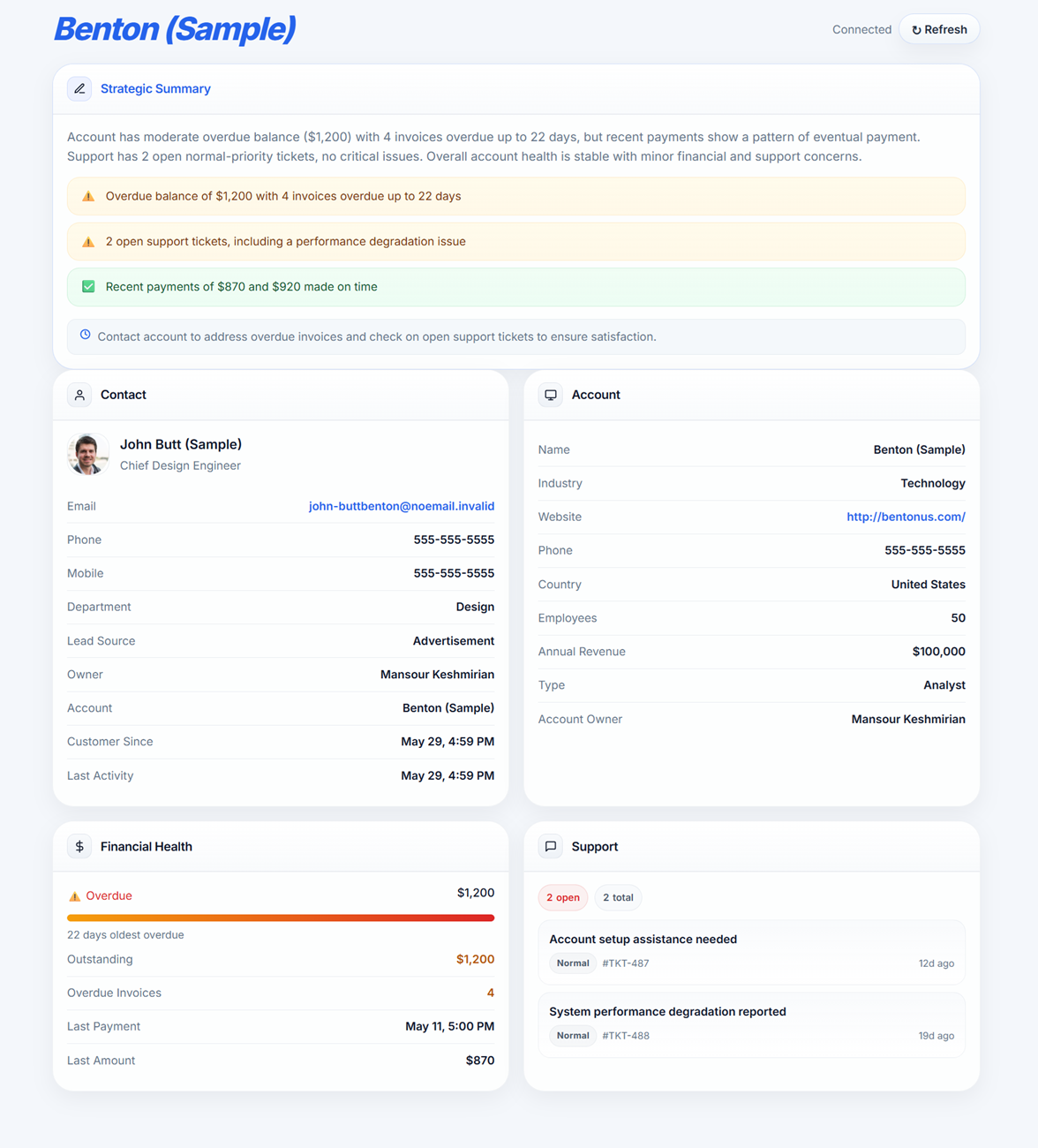
The page is arranged in a grid: Strategic Summary spans full-width across the top, with Contact and Account side by side below, and Financial Health and Support beneath them. The layout stacks to a single column on mobile.
2.2 Section Details
Sections load from top to bottom as the data arrives. Content is always visible — there are no collapsible sections.
🤖 AI Strategic Summary (top section)
An AI-generated analysis that reads across CRM, Books, and Desk, generated in parallel while other data loads:
- Strategic summary — overall account health assessment in plain text
- Risk flags — 🚩 critical issues, ⚠️ warnings, ✅ positive indicators (color-coded)
- Recommended action — a single, prioritized next step in a green box
- Model badge — shows which AI model generated the summary
The AI summary is cached for 15 minutes. Click the ↻ button in the toolbar to refresh all data.
👤 Contact (avatar + details)
Displays the contact's identity at a glance:
- Avatar — initials on a colored circle (color is deterministic based on name)
- Full name and job title
- Email and Phone
🏢 Account (company info)
Shown when the contact is linked to an account in CRM — this section may not appear for all contacts:
- Account — company name
- Industry — what sector they're in
- Revenue — annual revenue (formatted)
- Employees — company size
- Type — account classification
- Owner — the account owner in CRM
💰 Financial Health (invoices & payments)
Pulled from Zoho Books — visible only if your organization uses Zoho Books:
- Overdue amount — total past-due balance (color-coded green/yellow/red)
- Overdue invoices — number of unpaid invoices
- Oldest overdue — days since the most overdue invoice was due
- Overdue bar — visual progress bar relative to $5,000 (fills red/yellow/green)
- Last payment — date of the most recent payment received
Reading the signs:
| Indicator | What It Means |
|---|---|
| $0 overdue, recent payment | Healthy — safe to upsell |
| Overdue < 30 days | Follow up, but not critical |
| Overdue > 60 days | Escalate — risk of write-off |
| No financial data | Books not connected, or contact not found in Books |
🎫 Support (tickets & severity)
Pulled from Zoho Desk — visible only if your organization uses Zoho Desk:
- Open tickets — total active issues
- Critical — count of high-priority or urgent tickets (color-coded)
- Recent tickets — up to 5 most recent open tickets, each showing:
- Subject line
- Priority tag (red = High/Urgent/Critical, yellow = Medium, green = Normal)
- Ticket number
- Created date + age in days
Reading the signs:
| Indicator | What It Means |
|---|---|
| 0 open tickets | Smooth — focus on growth |
| 1-3 normal tickets | Business as usual |
| Critical ticket open | Pause upsell — resolve first |
| Many open tickets | Investigate account satisfaction |
3. Working with the AI Summary
3.1 How the AI Works
The AI analyzes your customer data across all three systems and generates insights. It considers:
- CRM lifecycle stage and recent activity
- Financial health (overdue vs current)
- Support ticket volume and severity
3.2 Understanding AI Flags
| Flag Type | Color | Example | Action |
|---|---|---|---|
| Critical | Red | "Critical support ticket + overdue invoice" | Address immediately |
| Warning | Yellow | "Overdue invoice, 45 days past due" | Follow up soon |
| Positive | Green | "Recent on-time payment received" | Leverage in conversation |
4. Tips & Best Practices
💡 Daily Workflow Tips
Before calling a customer:
- Open the contact in CRM
- Open Smart Assistant (Related List widget or view-page button)
- Scan financial health — is there an overdue balance?
- Check support tickets — any active issues?
- Read the AI summary for talking points
Before a quarterly review:
- Review the AI summary's flag history
- Note any recurring support issues
- Check payment trends in the financial section
Before sending a proposal:
- Verify no critical tickets are open
- Confirm financial account is current
- Use positive indicators in your messaging
📌 Pro Tips
- Pin Smart Assistant in your workflow — the widget is always on the contact page, so no bookmarking or extra tabs needed
- Use alongside regular CRM data — Smart Assistant is a supplement, not a replacement
- Share AI summaries with teammates when handing off accounts
- Note financial flags in your CRM notes before customer meetings
5. Troubleshooting
5.1 "Connect your Zoho account" — keeps showing
Fix: The Smart Assistant connection needs to be authorized once per user:
- Ask your Zoho admin to confirm the connection exists under ⚙️ Setup → Developer Hub → Connections (Smart Assistant, created from Pick Your Service)
- Open that connection and click Connect, then Accept on Zoho's consent screen
- Return to the contact page and press Retry in the widget
If it keeps asking after authorizing, your session may have expired — reconnect from the Connections screen, then refresh the CRM page.
5.2 "No financial data available"
Possible reasons:
- Your organization doesn't use Zoho Books
- The contact doesn't have invoices in Books
- The contact's email in CRM doesn't match their email in Books
What to do: This is informational only — financial data is a supplement. Core CRM data is always available.
5.3 "No support tickets"
Possible reasons:
- Your organization doesn't use Zoho Desk
- The contact has no open tickets
- The contact's email doesn't match between CRM and Desk
5.4 Smart Assistant appears blank or doesn't load
Quick checks:
- Refresh the page (F5)
- Reopen Smart Assistant — use the view-page button or reload the Related List widget
- Try a different contact
If it still doesn't work, contact your Zoho administrator with:
- The contact ID you were viewing
- Any error messages visible in your browser console (F12 → Console tab)
- A screenshot of what you see
5.5 Smart Assistant widget/button is missing entirely
Fix: The Smart Assistant extension needs to be installed from the Zoho Marketplace. Contact your Zoho admin and ask them to go to ⚙️ Setup → Marketplace → All, find Smart Assistant, and click Install.
↑ Back to top6. Frequently Asked Questions
Q: Do I need to authorize every time I use Smart Assistant?
No. You authorize once through Zoho's own connection screen (Setup → Developer Hub → Connections → Smart Assistant → Connect). Zoho stores and refreshes the token — you never re-enter credentials.
Q: Does Smart Assistant slow down my CRM?
No. Smart Assistant loads data asynchronously in its embedded widget. It doesn't affect the main CRM page performance.
Q: Can I use Smart Assistant on Leads, Deals, or other modules?
Currently it's designed for Contacts. Support for other modules may be added in future versions.
Q: How often does the data refresh?
Every time you open Smart Assistant, it fetches fresh data. AI summaries are cached for 15 minutes for performance.
Q: Does Smart Assistant open in a new tab or window?
No. The widget is embedded in the contact page's Related Lists section, and the view-page button opens it in an in-CRM popup. Nothing leaves the CRM window.
Q: Is my customer data sent to third parties?
Only the AI engine receives data for generating summaries. No customer data is stored by the AI provider. Financial and support data stays within Zoho's systems.
Q: Can I print or export the Smart Assistant view?
Smart Assistant is designed for on-screen use. You can take a screenshot if you need to share the information.
Q: What happens if my Zoho Books or Desk subscription expires?
Smart Assistant continues to work — it simply shows "No data available" for the affected sections. CRM data always works.
Q: Can I get help with onboarding or support?
Yes — if you'd like our team to help with setup or follow up with you, you can share your contact details here. This is completely optional and never required to install or use Smart Assistant.
↑ Back to top